Editing a picture's details
The desktop app is not released yet.
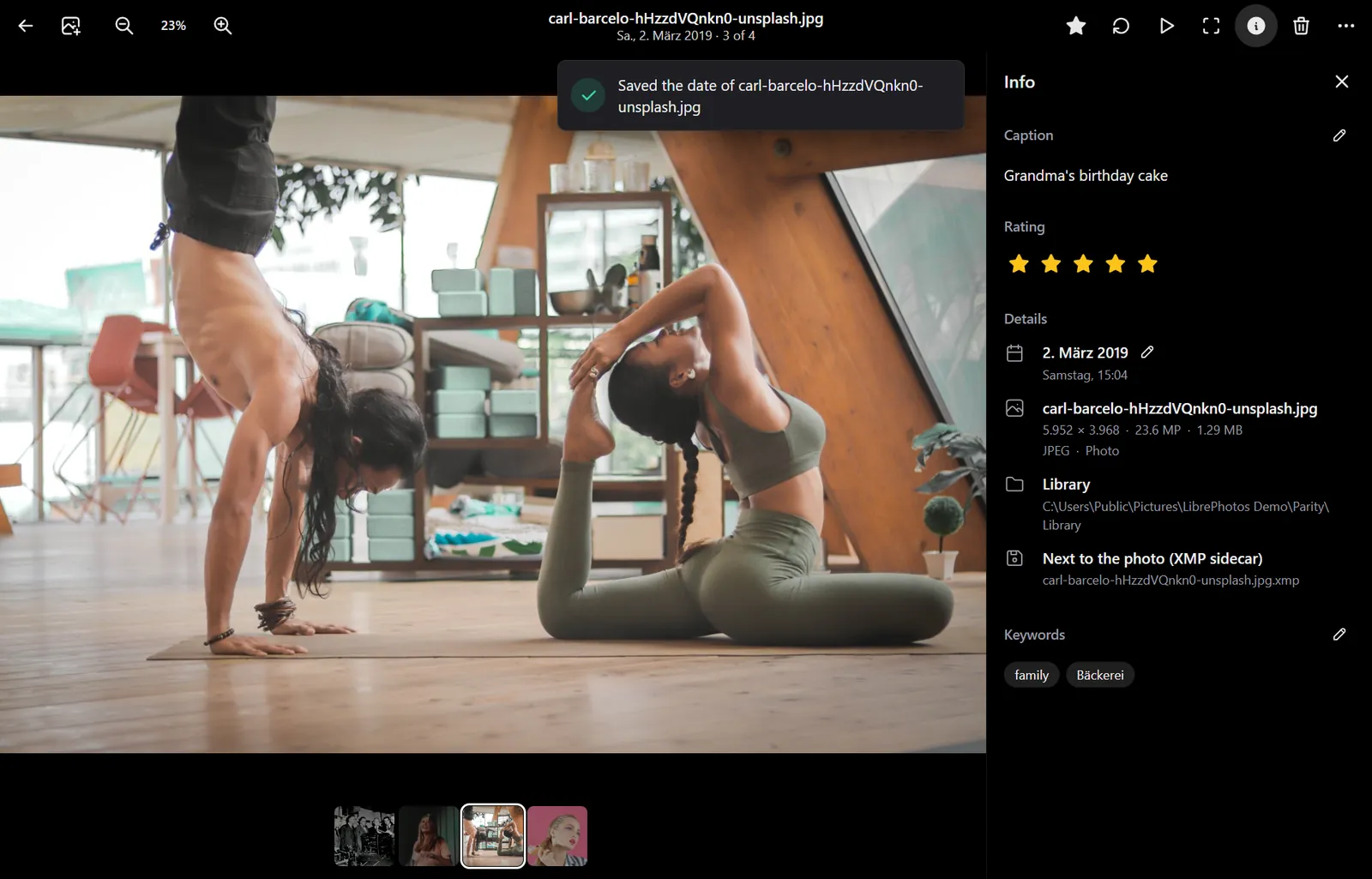
The viewer can change five details of a picture: whether it is a favourite, its star rating, its caption, its keywords and its date taken. They are the same details the web app's photo viewer edits, and they are saved where every photo app can read them, so they also work for pictures that are only on your computer.
Videos cannot be edited yet.
Favourite and rating
- Favourite: the star in the top bar, or
F. A favourite is a picture rated 4 stars or more, as in LibrePhotos: adding a favourite rates the picture 4 stars (unless it already has more), removing it sets the rating to 0. When you are connected to a server, the app uses your Minimum image rating to interpret as favorite from the server's settings instead of 4. - Rating: the five stars under Rating in the info panel, or
Ctrl+1toCtrl+5. Click the current rating again (or pressCtrl+0) to clear it.
Caption
Under Caption at the top of the info panel, click Add a caption or the pencil, type, and click the check mark (or press Ctrl+Enter). Esc or the cross leaves it unchanged. An empty caption removes it.
Keywords
Under Keywords, click Add keywords or the pencil. Type a keyword and press Enter (or a comma) to add it; the cross on a keyword removes it, and Backspace in the empty field removes the last one. The check mark saves the list. Keywords are what LibrePhotos calls tags: a server that scans the picture turns each keyword into a tag.
The keywords shown are the picture's own keywords, together with the last part of each hierarchical keyword that Lightroom or digiKam wrote (Places|France|Paris shows as Paris). Removing such a keyword removes its hierarchical entry too.
Date taken
Click the pencil next to the date under Details, pick the date and time, and click the check mark. The date is the local time the picture was taken, without a time zone, like the camera's own date. The picture moves to its new day in the library. The camera's original date in the file is kept: the new date is stored as the XMP date created, which LibrePhotos and other apps read before the camera's date.
Where edits are saved
Where your edits go is set under Where edits are saved in Settings. It works like the server's Write edits to files setting:
| Setting | What happens |
|---|---|
| Next to the photo (XMP sidecar) (the default) | A small text file next to the picture holds the edits. The picture file itself is never changed. |
| Into the photo file | The edits are written into the picture's own XMP block, without re-compressing it. Only JPEG files can be changed this way: for other formats saving is refused with a message, and you can switch to the sidecar. A sidecar the picture already has is updated too, because apps read the sidecar first. The file changes, so a backup sees a new file. |
| Only in this app | The edits are kept in the app's database only. The picture and its sidecar are not touched, and other apps do not see them. |
Each panel shows where its picture's edits go, under Edits are saved in Details.
The XMP sidecar
The sidecar is the file LibrePhotos itself writes when Write edits to files is set to the sidecar, and the one digiKam, darktable and Lightroom use:
- An existing sidecar is updated:
IMG_1234.xmpfirst, thenIMG_1234.jpg.xmp, as LibrePhotos reads them. Everything else in it (other apps' settings, history, labels, other languages of the caption) is kept. - Without one, the app makes
IMG_1234.jpg.xmp, named after the whole file name, so a RAW file and the JPEG next to it (IMG_1234.CR2andIMG_1234.JPG) do not share one by accident. - A sidecar the app cannot read (not valid XMP) is never overwritten: saving fails with a message instead.
The values are stored under the names LibrePhotos reads and writes:
| Detail | XMP property |
|---|---|
| Rating (and so favourite) | xmp:Rating, 0 to 5 |
| Caption | dc:description, the default language entry |
| Keywords | dc:subject (and lr:hierarchicalSubject entries are removed with their keyword) |
| Date taken | photoshop:DateCreated |
When a picture is opened, its details are read from the file and then from the sidecar, and the sidecar wins, as on the LibrePhotos server. So a picture you open from Explorer shows the rating and caption another app or another computer saved next to it, and a server that scans a folder with these sidecars picks the edits up.
In the library and the database
Pictures in your library also keep their rating, favourite, caption and keywords in the app's database, so you can search by caption and keyword. Pictures opened from elsewhere get a row there too when you edit them. With Only in this app the database is the only place the edit is saved; reading the file again later does not undo it.
Pictures on your LibrePhotos server
When you are connected to a server and the picture is on it (the same file, recognised by its content), each edit is also sent to the server: the rating, the caption, the keywords (as tags) and the date taken. The server then shows the same as the app.
If the server cannot be reached, the change waits in the app and is sent when the server answers again (the app tries every 30 seconds and after you sign in). The latest change of a detail wins: three rating changes made offline send one rating. Settings shows how many changes are waiting. A change the server refuses is kept there with Try again, not thrown away.
Changes made on the server or in the web app are not copied back into your files by the desktop app.